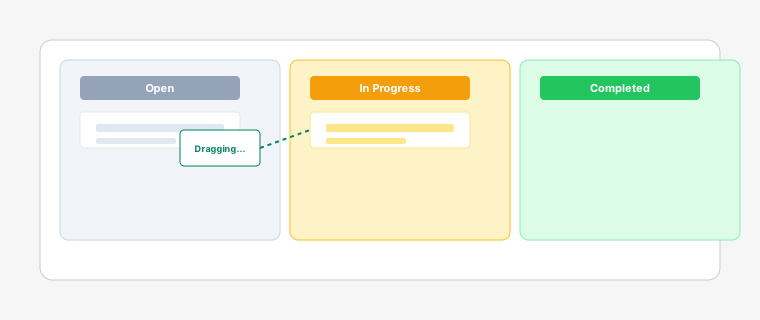
Animated illustration of dragging a return card between columns on the kanban board
Drag and drop is the primary way to interact with your kanban board, allowing you to visually manage your returns workflow.
Steps
1
Hover over a return card and click and hold the drag handle (the six dots icon) on the left side of the card. The card will lift up and become semi-transparent.
2
Drag the return to another column to update its status. As you drag, you'll see a visual indicator showing where the return will be placed. Release to drop the return in its new location.
3
You can also drag returns within the same column to reorder them. Returns at the top of a column are typically processed first, so organize them by priority or due date.