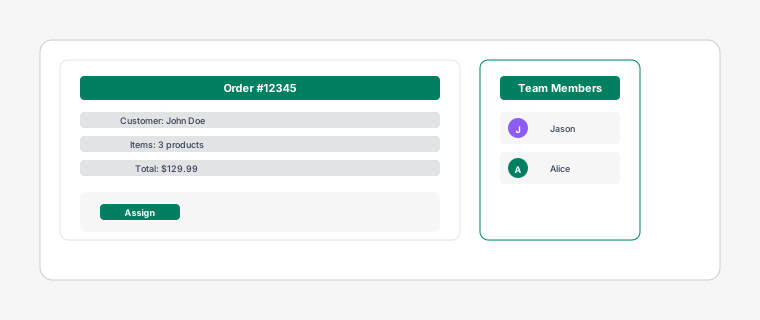
Return card being dragged onto a staff avatar showing assignment confirmation
There are several ways to assign return requests to your team members for efficient returns management.
Steps
1
Click on a return card to open the detail drawer, then select a staff member from the "Assign to" dropdown menu. The assigned staff member will receive a notification.
2
Drag a return card and drop it onto a staff member's avatar in the staff sidebar. This is the quickest way to assign a single return request.
3
Use batch actions: Click the checkbox on multiple return cards to select them, then use the "Assign" dropdown in the batch actions bar that appears at the top to assign them all to the same staff member at once.
This is efficient when processing multiple returns at once.