Automation Features
5 min read
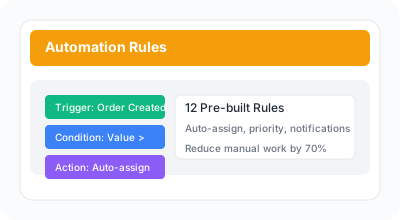
Automate repetitive tasks and streamline your returns workflow with intelligent automation features.
Steps
- 1
Enable auto-assignment to automatically distribute incoming returns to available team members. The system uses load-balanced assignment to pick the staff member with the fewest active return requests.
- 2
Set priority rules to automatically assign priority levels based on return value or other criteria when return requests are created.
- 3
Create custom automation rules to trigger actions based on specific conditions. For example, automatically assign return requests to specific staff when return value exceeds a threshold, or send Slack notifications for overdue return requests.
Available actions: assign staff, set priority, send Slack notification, add tags.
- 4
Combine multiple rules for complex workflows. Pro plan includes 5 rules; Enterprise plan supports unlimited rules for advanced automation scenarios.